How does Anything Piano make a piano tutorial for any song?
Last updated August 20, 2026
Play Anything builds foundation models for music. Anything Piano is powered by our music transcription model, which analyzes a song's audio and converts it into structured note data. We use that data to create an interactive piano roll tutorial that you can slow down, loop, and practice one hand at a time. You can start with a YouTube, TikTok, or Instagram link, upload an audio file, or make a live recording. Because the model works directly from the audio, it can create a tutorial for literally any song.
It starts with your song
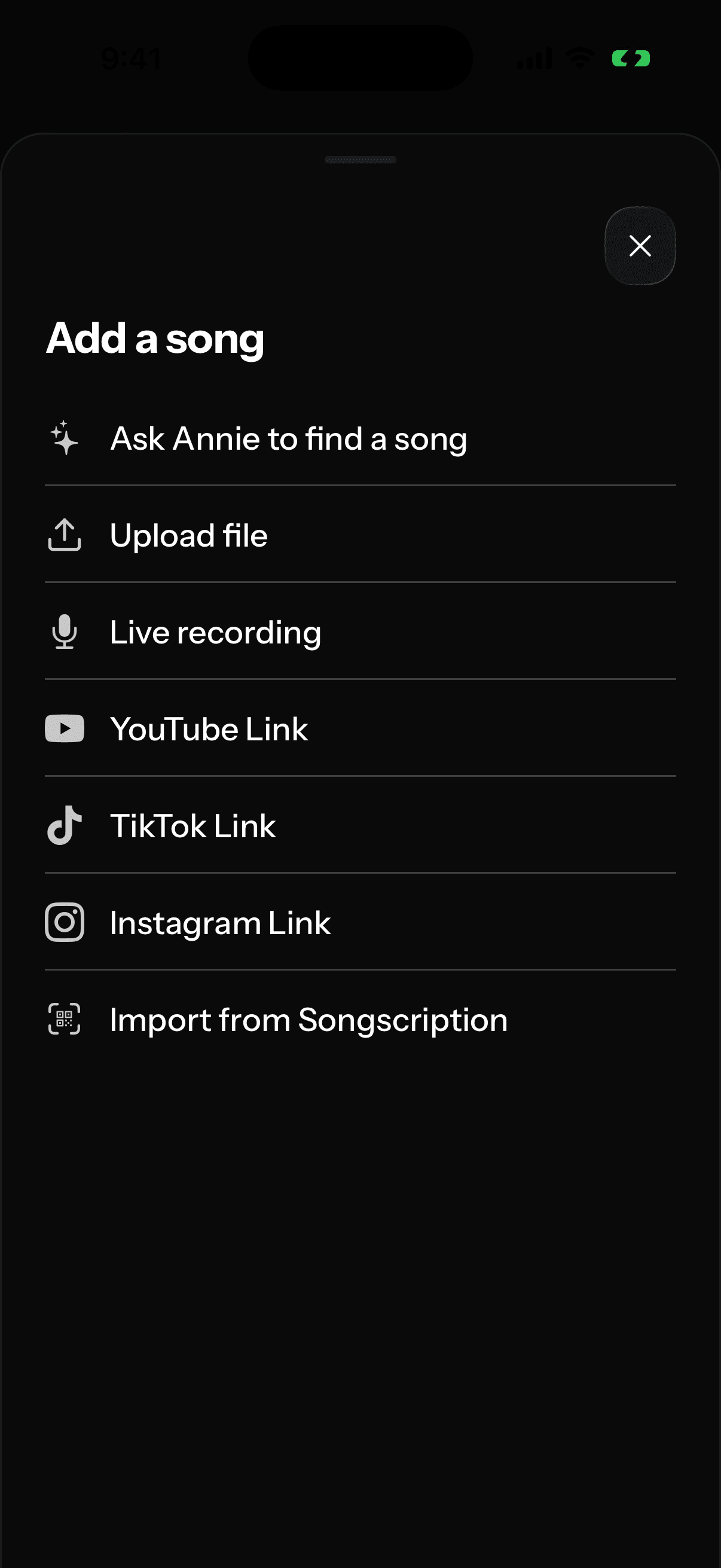
Tap the + button and pick a source: paste a link, upload a file, or record something live, like a friend playing. You can trim YouTube videos and uploaded audio files to the part you want to learn before anything gets processed. After up to a few minutes of processing, the finished song will show up in My songs.
A few quick questions decide how we transcribe
Before converting, the app asks a few quick questions so we know how to handle your audio for the best output. The most important one is whether your audio contains piano, because there are two honest ways to turn audio into something playable:
- It has piano, and you want exactly that. We write out the exact notes the piano plays and ignore everything else. This is the right choice for learning a piano performance or cover, note for note.
- It's a regular song. Most music isn't a piano solo, so we listen to the melody, the vocals, and the other instruments and blend them into one piano arrangement that captures how the full song sounds. You're not playing a transcription of nothing; you're playing a piano version of the song.
What you get: the piano roll
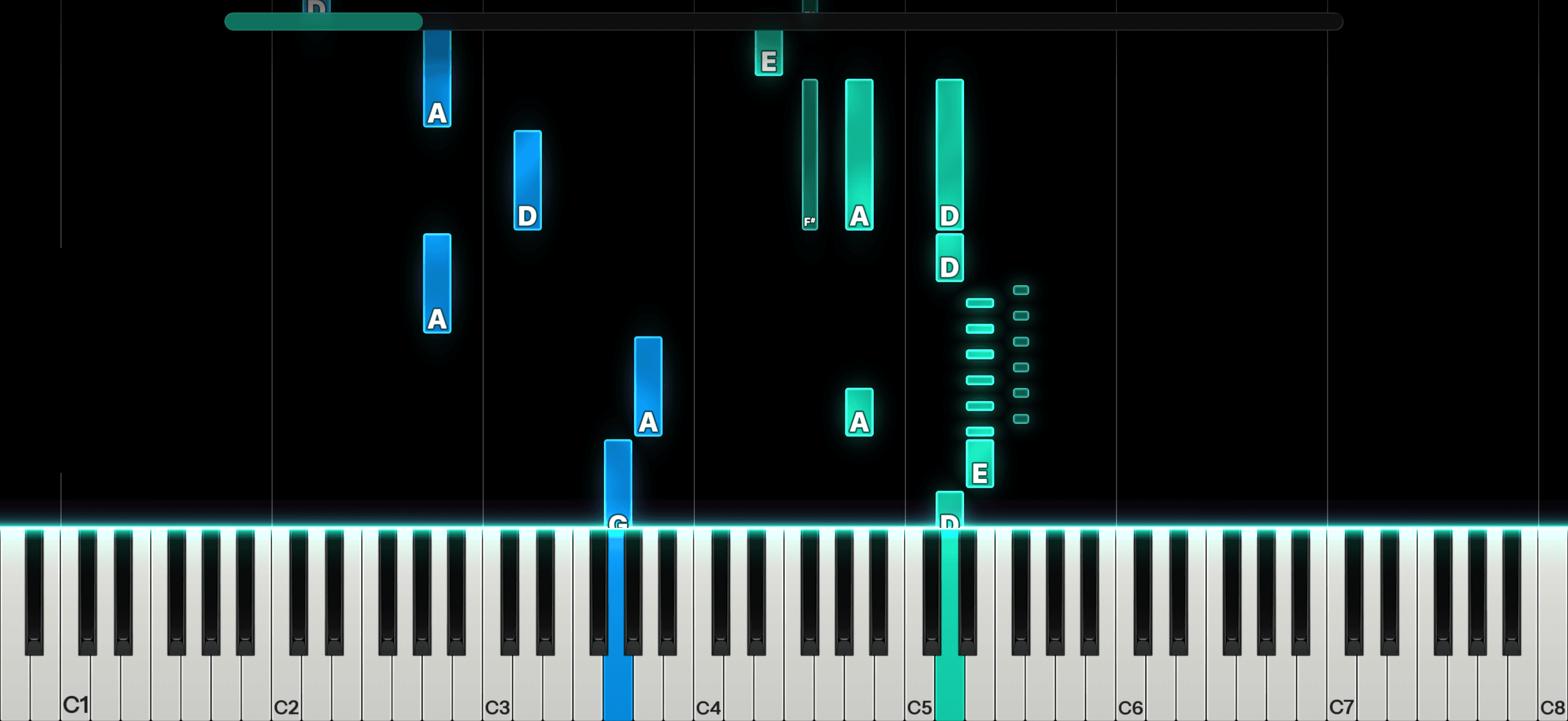
The tutorial is a piano roll: notes fall down the screen toward a keyboard, and you play each one as it arrives. The length of each bar is how long you hold the note, green notes belong to your right hand, and blue notes belong to your left. You don't need to read music to follow it; if you can match falling notes to keys, you can play.
How you actually learn it
- Play-Along mode plays the song while you play with it. Turn the song's sound off so the app can hear you clearly and show you whether you're hitting the right notes. If the sound is on, the microphone can pick up the app's speaker instead of your playing.
- Wait mode pauses on each group of notes until you play them, so the song moves at exactly your pace.
- Speed control gives you presets from Slowest to Fast. Most people learn a song slow and work their way up.
- Hand toggles let you hide the green or blue notes and practice one hand at a time.
- Loop repeats a section between any two notes you tap. The repetition helps each part really stick in your brain, and muscle memory begins to kick in.
Warning: our transcriptions will not always be perfect
A clean recording of a piano converts beautifully, but a busy mix, a noisy or very quiet recording, or heavy effects can lose notes or put one on the wrong hand. Occasionally a song comes back with "No notes detected." That can happen if you asked for only the piano but the audio did not contain a clear piano part. Running it again and choosing No, use the whole song often fixes the problem. You may also see this message when the audio is too quiet or too short for our models to detect notes.
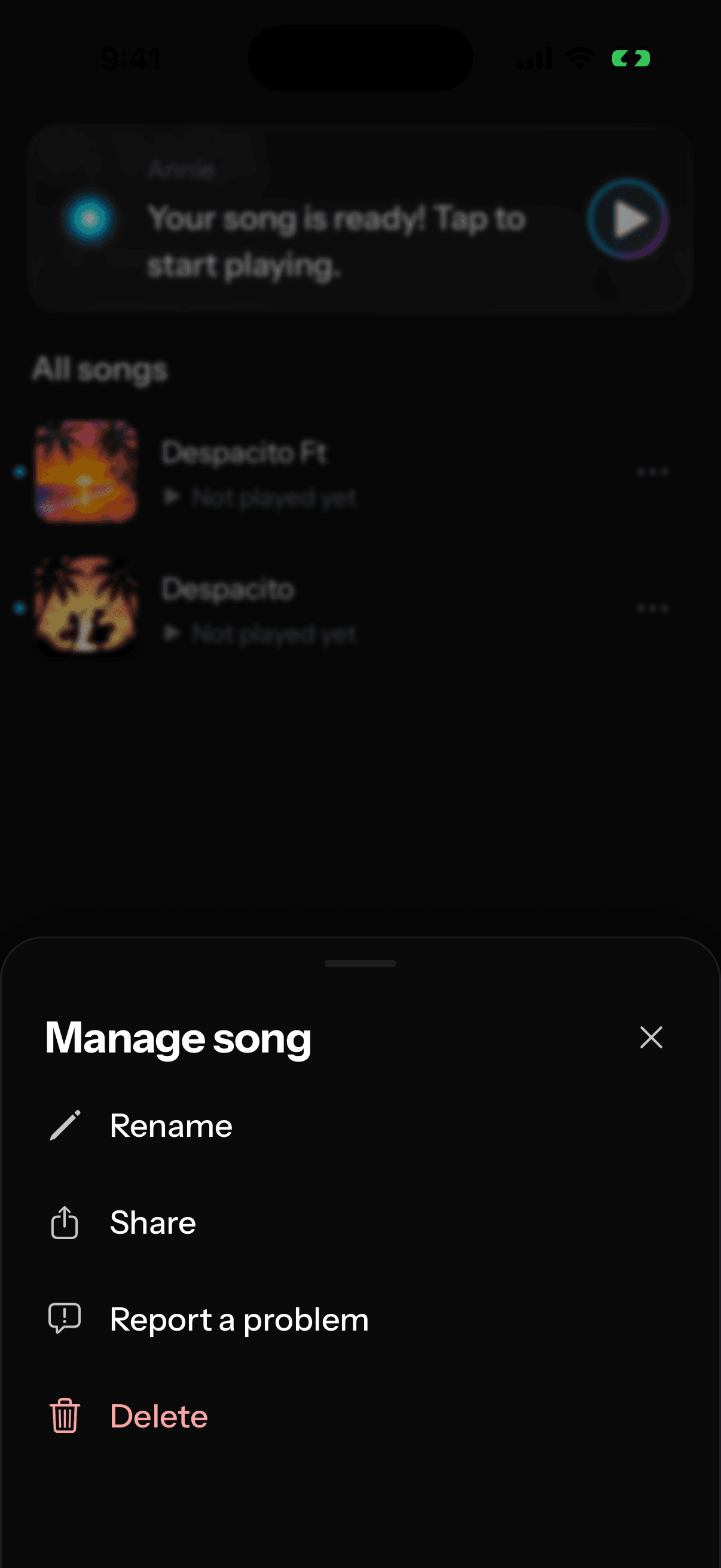
Please report if the conversion output is bad. Long-press the song in My songs, tap Report a problem, and pick what went wrong (notes missing, bad hand split, and so on). Those reports go straight to our team, and we use every one of them to make our output better.