How do I turn a YouTube video into a piano tutorial?
Last updated August 20, 2026
Copy the video's link, open Anything Piano, tap the + button, and choose YouTube Link to paste it. Pick the part you want to learn, answer a few questions so we know how to handle your audio, and the app turns the video into a piano roll tutorial you can slow down, loop, and practice.
Three ways to hand us the video
- Paste the link. Tap +, choose YouTube Link, and paste.
- Share from YouTube. Tap Share on the video and choose Anything Piano from the share sheet.
- Let the app spot it. If a YouTube link is already on your clipboard when you open the add-song menu, a Paste from clipboard suggestion appears at the top, and one tap uses it.
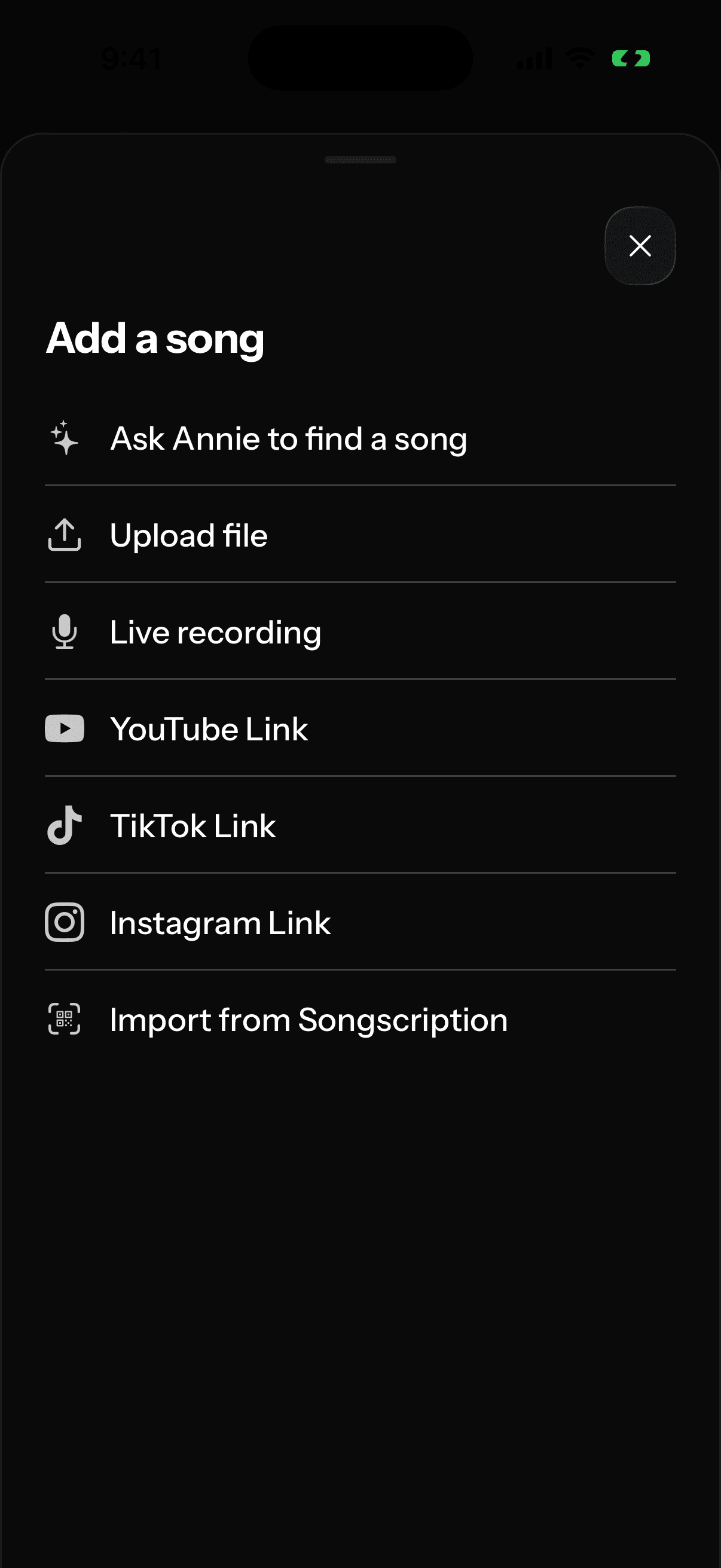
From link to piano roll
- Tap + and choose YouTube Link (or arrive via the share sheet).
- On Choose the part you want to learn, drag the START and END handles to trim to the section you want. Keeping the whole video is fine too.
 3. Answer Does this video contain piano? If you choose No piano, we create a piano arrangement of the whole song. If you choose Yes, it has piano, we ask one follow-up about whether you want only the piano, exactly as played.
4. Name your song and tap Create piano roll.
3. Answer Does this video contain piano? If you choose No piano, we create a piano arrangement of the whole song. If you choose Yes, it has piano, we ask one follow-up about whether you want only the piano, exactly as played.
4. Name your song and tap Create piano roll.
 You'll see an estimate of how long the conversion will take, and you don't need to wait around. The song processes in the background and shows up in My songs, and we let you know the moment it's ready.
A few limits worth knowing
- Length. Videos up to about 30 minutes work; the app will tell you if yours is longer. For a long compilation, find the individual song you want instead.
- Playlists. A playlist link doesn't point at one video, so the app asks you to paste the share link for the song itself.
- Availability. Private, deleted, age-restricted, or region-blocked videos can't be downloaded. If you have the audio, uploading the file works instead.
- Downtime. YouTube importing occasionally has to be switched off on our end. When it is, the app says so, and we work to bring it back online as soon as possible.