How do I loop a section of a song?
Last updated August 20, 2026
You set a loop with two taps on the piano roll itself. Tap the Settings gear, tap Loop, then tap the note where the loop should start and the note where it should end. That section repeats until you cancel it, so you can play a tricky passage over and over until muscle memory kicks in.
Set a loop
- Open the song and tap the Settings gear in the piano roll header.
- In the Additional settings panel, tap Loop.
 3. The app asks you to "Tap the first note of the loop." Tap the note where you want the repeat to begin.
4. Next it asks you to "Tap the last note of the loop." Tap the note where it should end.
3. The app asks you to "Tap the first note of the loop." Tap the note where you want the repeat to begin.
4. Next it asks you to "Tap the last note of the loop." Tap the note where it should end.
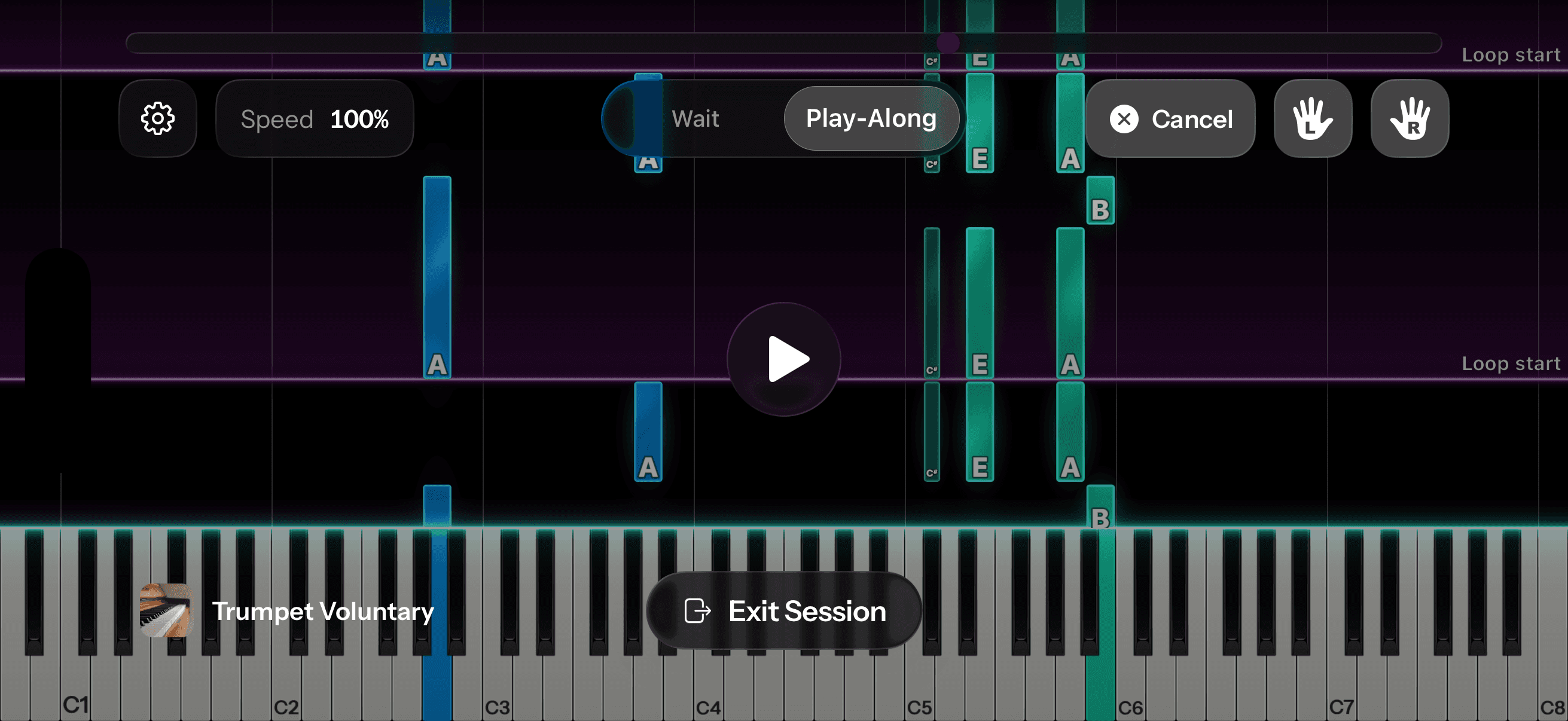
 The section between your two notes now plays on repeat, and a Loop start marker on the roll shows you where each pass begins.
If the app says "Pick a note a little further away"
A loop needs a little room between its endpoints, slightly more than a single chord. If your second tap lands on the same chord as your first, the loop would be too short to practice against, so the app asks you to pick a note a bit further along. Tap one and the loop sets normally.
Turn the loop off
While a loop is active, a Cancel button sits beside the hand toggles, and tapping it lets the song play straight through again. Tapping Loop in the Additional settings panel clears an active loop too.
A tip: loop it slow
Loops pair well with the speed control. If a passage keeps tripping you up, set a loop around it and drop the speed a preset or two, then bring the speed back up as it starts to feel comfortable. Once it feels easy at Normal, remove the loop and play the section in context.